
Please enable Javascript to view the contents

OpenClaw + 云容器 = Agent 并发安全沙箱浏览器

 ·  ☕ 4 分钟

logo

本文介绍 OpenClaw 如何构建安全沙箱浏览器环境。在多 Agent 并发时让浏览器也支持并发。通过容器化 Sandbox,可以实现浏览器隔离、并发任务支持以及资源回收等能力。同时分析沙箱工具权限配置的关键细节,并介绍 OpenClaw 源码调试方法。

前言: OpenClaw 到底是真正有产能性价比的 AI 助手,还是只是个 皇帝的新衣 被一众相关利益者吹嘘炒作?虽然我已经研究了两个多月,还不知道答案。不过,作为一个失业码农,我只想研究一下相关的技术和应用。所以本文没有 “功能炸裂、不学就被淘汰、震惊、天花板、刷新了我xyz、省下多少 $$ ” 这类的故事。

以 OpenClaw 为代表的这类个人 AI Agent,如果要真实完成任务,就必须给予其一定的权限和工具。但由于 LLM 的不稳定性以及 Prompt 注入漏洞,这些能力又必须被严格约束。无论是 Guardrail 还是其它防御手段,都无法保证绝对安全。

在这种情况下,容器化 Sandbox 就成为最后一道入侵防线和风险防火墙。

OpenClaw 提供两类 tools 的 sandbox:

  • 运行时 sandbox container
  • 浏览器 sandbox container

使用容器化 Sandbox,除了作为 入侵防线和风险防火墙 外,还能带来一些额外好处:

  • 支持浏览器并发操作

    每个 Session 使用独立容器,资源完全隔离。例如,每个 session 使用自己的 browser sandbox 实例,从而避免并发任务之间的浏览器操作互相干扰。

  • Session 资源使用限制

  • Session 资源统一回收

沙箱浏览器的部署

1. 创建 Agent

1
2
openclaw agents add worker --workspace ~/.openclaw/workspace/worker
openclaw agents set-identity --agent worker --name "worker"

2. 配置沙箱

每个 Agent 都可以拥有独立的沙箱配置,其配置位于 ~/.openclaw/openclaw.json 中的 agents.list[].sandbox

  1
  2
  3
  4
  5
  6
  7
  8
  9
 10
 11
 12
 13
 14
 15
 16
 17
 18
 19
 20
 21
 22
 23
 24
 25
 26
 27
 28
 29
 30
 31
 32
 33
 34
 35
 36
 37
 38
 39
 40
 41
 42
 43
 44
 45
 46
 47
 48
 49
 50
 51
 52
 53
 54
 55
 56
 57
 58
 59
 60
 61
 62
 63
 64
 65
 66
 67
 68
 69
 70
 71
 72
 73
 74
 75
 76
 77
 78
 79
 80
 81
 82
 83
 84
 85
 86
 87
 88
 89
 90
 91
 92
 93
 94
 95
 96
 97
 98
 99
100
101
102
103
104
105
106
107
108
109
110
agents:
  list:
      {
        "id": "worker",
        "name": "worker",
        "workspace": "~/.openclaw/workspace/worker",
        "agentDir": "~/.openclaw/agents/worker/agent",
        "identity": {
          "name": "worker"
        },
        "subagents": {
          "allowAgents": [
            "main",
            "worker"
          ]
        },
        "sandbox": {
          "mode": "all",
          "workspaceAccess": "rw",
          "scope": "session",
          "docker": {
            "image": "openclaw-sandbox-common:bookworm-slim",
            "containerPrefix": "oc-sbx-worker",
            "workdir": "/workspace",
            "readOnlyRoot": true,
            "tmpfs": [
              "/tmp",
              "/var/tmp",
              "/run"
            ],
            "network": "bridge",
            "user": "1000:1000",
            "capDrop": [
              "ALL"
            ],
            "env": {
              "LANG": "C.UTF-8"
            },
            "memory": "8g",
            "cpus": 2
          },
          "browser": {
            "enabled": true,
            "image": "openclaw-sandbox-browser:bookworm-slim",
            "containerPrefix": "oc-sbx-browser-worker",
            "network": "openclaw-sandbox-browser",
            "headless": false,
            "enableNoVnc": true,
            "allowHostControl": false,
            "autoStart": true,
            "autoStartTimeoutMs": 12000
          },
          "prune": {
            "idleHours": 1,
            "maxAgeDays": 1
          }
        },
        "tools": {
          "profile": "full",
          "allow": [
            "group:messaging",
            "group:runtime",
            "group:fs",
            "group:sessions",
            "group:web",
            "group:ui",
            "group:automation",
            "group:nodes",
            "group:openclaw"
          ],
          "deny": [],
          "elevated": {
            "enabled": true,
            "allowFrom": {
              "webchat": [
                "*"
              ]
            }
          }
        }
      },
 
tools:
  profile: full
  allow:
    - group:messaging
    - group:runtime
    - group:fs
    - group:sessions
    - group:web
    - group:ui
    - group:automation
    - group:nodes
    - group:openclaw
  deny: []
  sessions:
    visibility: all
  sandbox:
    tools:
      allow:
        - group:messaging
        - group:runtime
        - group:fs
        - group:sessions
        - group:web
        - group:ui
        - group:automation
        - group:nodes
        - group:openclaw
      deny: [] 

如果你好奇 deny: [] 的作用,那就对了,请继续往下看。

沙箱浏览器工具权限

这里是本文的重点和难点。我在沙箱工具权限上花了整整两天时间,因为沙箱模式下的 Agent 一直抱怨没有 browser 工具。

OpenClaw 文档中虽然说明了 sandbox browser 的配置,但并没有提供一个完整的配置教程。网上也几乎找不到成功配置的案例。最后我只能通过 Debug OpenClaw 源代码来定位问题。

在 OpenAI Codex 的源码解读以及 VSCode Debug 的帮助下,我终于找到了问题所在。具体过程会在后面的 “Debug” 一节中说明。这里先直接给出结论:

需要在 tools 的权限配置中增加 deny: []

在 Debug 了很久之后,源码中的
src/agents/sandbox/tool-policy.ts 里的 DEFAULT_TOOL_DENY 最终给了我答案。

你也许会说:文档里不是已经写了吗?

确实写了,但 OpenClaw 的文档相对碎片化,没有一个系统的教程示例可以直接参考。因此如果没有完整理解权限体系,很容易忽略这个细节。


题外话:这个空配置的重要性,让我想起“空性”(Śūnyatā)。
在佛教(尤其是禅宗和大乘佛教)中,“空”并不代表什么都没有,而是指一切事物都没有固定、独立、不变的本质(自性)。


3. 构建沙箱浏览器的 Image

参考: https://docs.openclaw.ai/gateway/sandboxing#images-%2B-setup

1
2
3
4
5
6
7
8
9
git clone https://github.com/openclaw/openclaw

cd openclaw

# build agent runtime docker image: openclaw-sandbox-common:bookworm-slim
scripts/sandbox-common-setup.sh

# build agent browser docker image: openclaw-sandbox-browser:bookworm-slim
scripts/sandbox-browser-setup.sh

沙箱浏览器的使用

下面示例:

 1
 2
 3
 4
 5
 6
 7
 8
 9
10
11
12
Now I want to summarize following websites:
- https://news.ycombinator.com/
- https://lobste.rs/

You can use `sessions_spawn` tool to submit task to a worker. With parameters:
- `agentId`=worker
- `label`=$(a_key_word_of_the_website_domain_name)

The `task` parameter you submit should use following template:
> 1. Call browser `navigate` tool with targetUrl=$(the_website_url) , don't call browser `open` tool. Don't use `web fetch` tool or any other shell command if the browser tool fail. Then summarize the webpage content and response it with the screen shoot of your browser.

Try your best to concurrent the tasks.

中文版本:

 1
 2
 3
 4
 5
 6
 7
 8
 9
10
11
12
现在,我希望你对以下网站进行摘要总结:
- https://news.ycombinator.com/
- https://lobste.rs/

你可以使用 `sessions_spawn` 工具将任务提交给一个工作进程(worker)。提交时需包含以下参数:
- `agentId`=worker
- `label`=$(网站域名中的一个关键词)

你提交的 `task` 参数应采用如下模板:
> 1. 调用浏览器的 `navigate` 工具,并指定 `targetUrl=$(网站URL)`;切勿调用浏览器的 `open` 工具。如果浏览器工具执行失败,请勿转而使用 `web fetch` 工具或任何其他 Shell 命令。随后,请对网页内容进行摘要总结,并将总结结果连同浏览器的截图一并作为响应输出。

请尽可能尝试并发执行这些任务。

看,码农写的 prompt 都不像 prompt,更像个 pseudocode :)

运行结果:
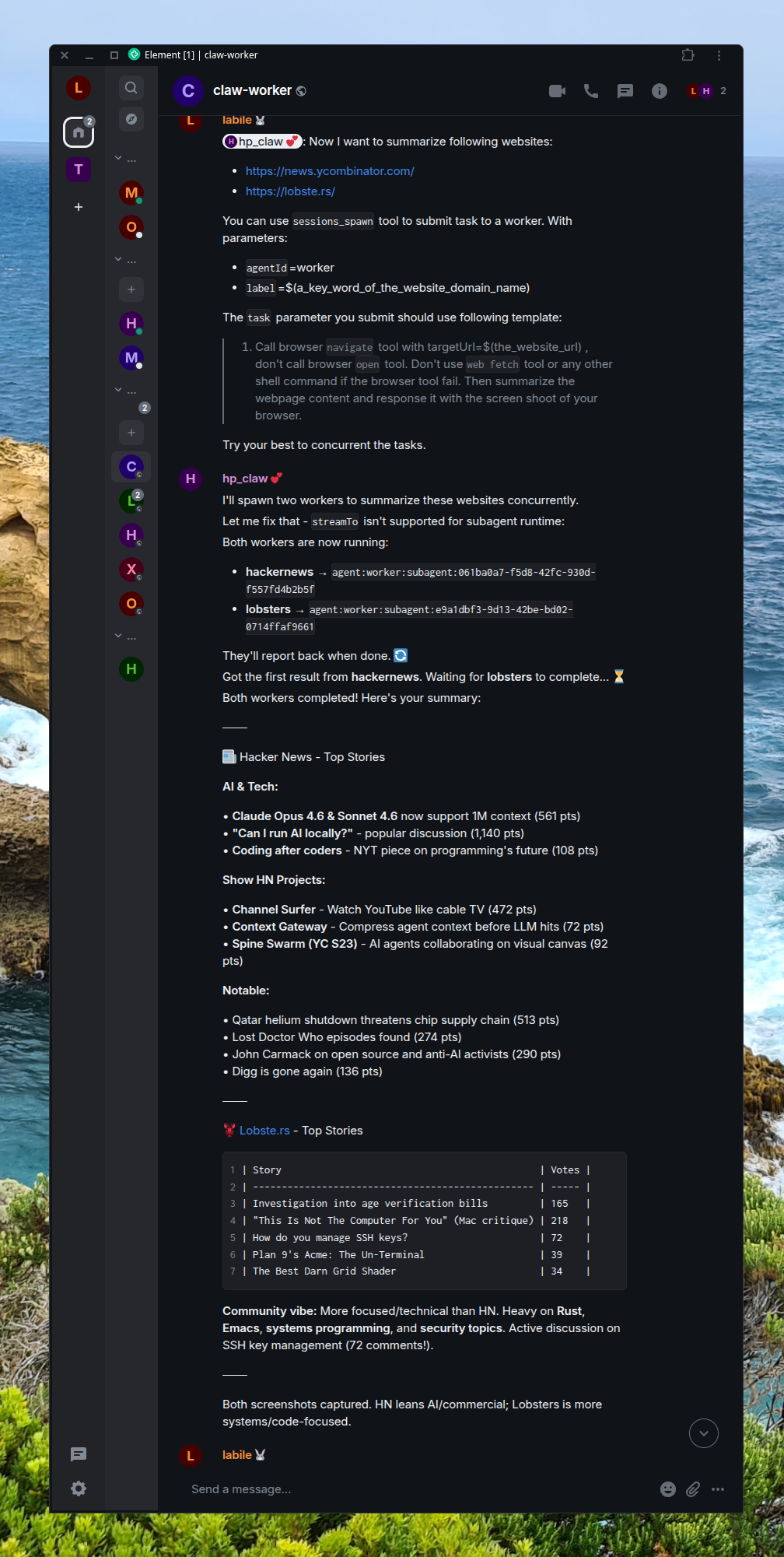
im

Debug OpenClaw (调试并设置断点)

在 VSCode 中调试 OpenClaw 成了排查配置问题的最后手段。很多有经验的开发者都知道:再完善的文档,也比不上直接阅读源代码。

作为一个后端 Java 开发者,调试 TypeScript 项目其实并不容易入手。好在 OpenAI Codex 最终为我 指明了方向

具体过程我准备在另一篇文章中详细说明。这里先给出 VSCode 调试 OpenClaw 的配置示例。

.vscode/launch.json

 1
 2
 3
 4
 5
 6
 7
 8
 9
10
11
12
13
14
{
  "version": "0.2.0",
  "configurations": [
    {
      "name": "OpenClaw: Gateway dev",
      "type": "node",
      "request": "launch",
      "cwd": "${workspaceFolder}",
      "program": "${workspaceFolder}/scripts/run-node.mjs",
      "args": ["gateway", "--port", "18789", "--force"],
      "console": "integratedTerminal",
      "outFiles": ["${workspaceFolder}/dist/**/*.js"],
      "skipFiles": ["<node_internals>/**"]
    },    
分享

Mark Zhu
作者
Mark Zhu
我在找工作 | I'm open to work