
本文展示了如何通过自托管的 OpenClaw Skills,对 Home Lab(家庭服务器群)与智能家居进行真 AI 智能化控制。而不受限于小米米家等平台的各种智能限制。通过将家庭服务器群环境、监控系统以及几种 API 封装为结构化的 Skills,AI Agent 可以完成服务器故障排查、以有趣的智能家居灯光方式可视化运维操作,并通过智能音箱汇总报播网站实时新闻。
背景
这些年,我一直在运行和维护自己的 Home Lab(家庭服务器群) 和一套小型智能家居系统。随着设备和服务越来越多,维护和管理也变得越来越复杂。
同时,我也逐渐意识到,传统的“智能家居”其实并不真正智能。运营方出于各种原因,没有把最近的 AI 科技更新到智能家居平台上。很多问题的存在,往往只是因为我懒得去做自动化。如今,现代 AI 技术或许可以帮助解决这些问题。
我的 Home Lab 已经运行了 5 年多,承载着多个 Linux 主机上的各种服务。同时,我还运行了一套 Home Assistant 实例,用来管理家中的 IoT 智能家居设备。
在可观测性方面,我部署了 Prometheus 和 Grafana,并为硬件和软件异常配置了告警机制。
但问题是:当手机收到告警后,我仍然需要手动调查和排查问题。如果我不在家,用手机远程排障就会变得低效又麻烦。
这正是 OpenClaw 发挥作用的地方。理想情况下,我只需要给它一些目标,它就应该能替我完成后续操作。
作为 Home Lab 和智能家居的管理员,OpenClaw 需要具备以下三类“技能 (Skills) ”:
使用场景
1. Home Lab 故障排查与根因分析
查找某台服务器上 CPU 占用最高的服务,并通过智能音箱播报结果。
当收到“CPU 使用率过高”或“温度过高”告警时,这种方式尤其方便。
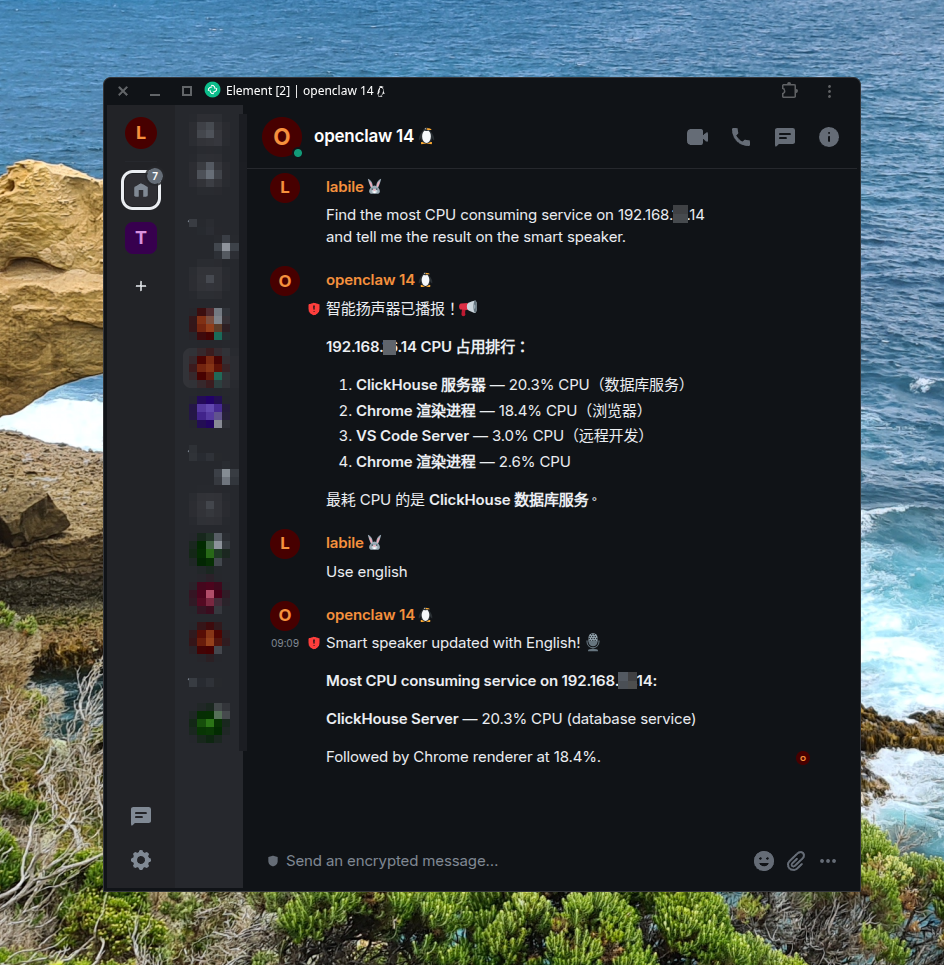
(配图:root cause 分析示意图)
2. Home Lab “氛围灯光秀大师”
重启某一台服务器。重启开始时,立刻调暗书房灯光;当机器启动完成、所有服务初始化完毕后,再把灯光恢复。
这样一来,当我人在书房时,就可以通过灯光变化 “可视化” 服务器的启动进度。
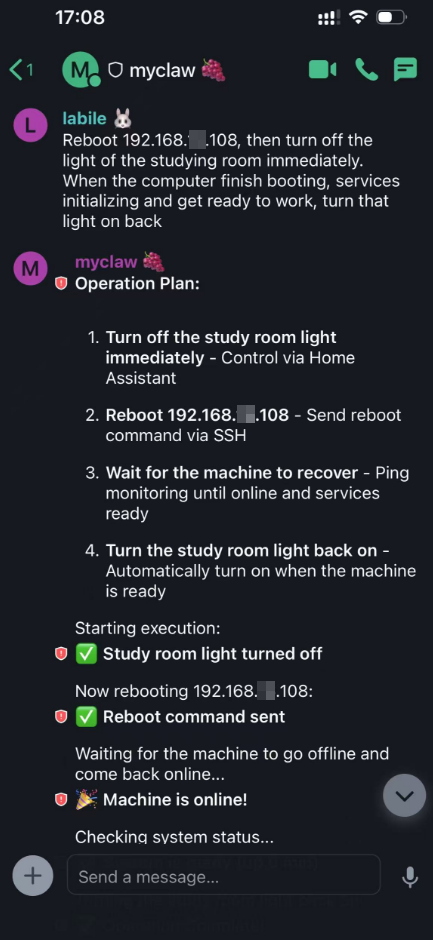
(配图:重启灯光联动示意图)
3. AI 驱动的智能家居控制
将 Hacker News (https://news.ycombinator.com/) 的内容摘要和翻译为中文,并通过智能音箱朗读出来。
当我在晨起或做家务时,也可以通过智能音箱播报了解最新任意网站的动态摘要。
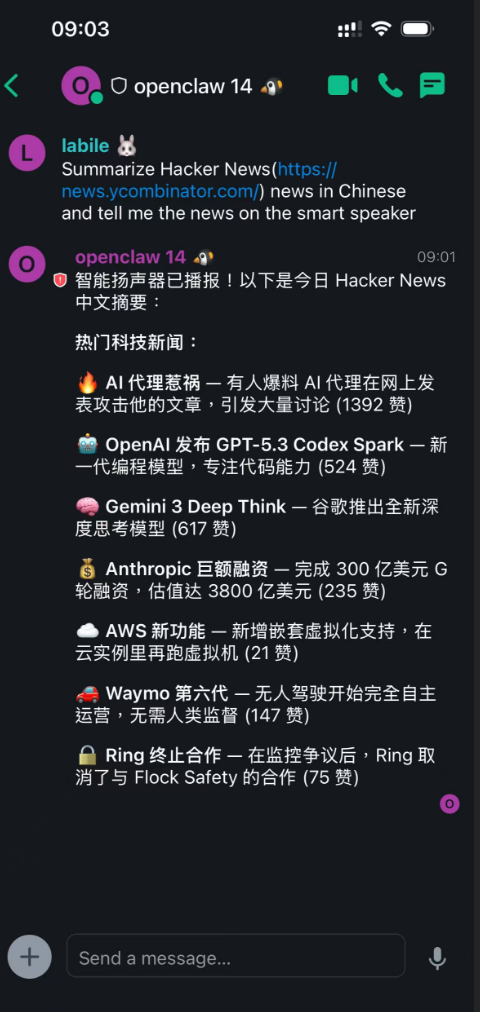
(配图:语音播报示意图)
Skills 设计
为了实现这些功能,我首先需要向 OpenClaw 介绍我的 Home Lab 环境,包括:
- 所有 Linux 主机列表
- 每台机器上运行的服务
- 监控系统细节
- Agent 必须遵守的运维规则
我不希望把这些信息直接塞进普通的 LLM 上下文里——那样会迅速消耗上下文窗口,并浪费大量 token。
Anthropic 的 Skills 规范提供了一个清晰的解决方案:我可以将 Home Lab 环境封装成一个 Skill,让 OpenClaw 在需要时按需加载。
注意:以下 Skill 代码片段为了便于阅读,做了简化处理。
Home Lab 环境 Skill
核心思想:
- 通过 Bash 和 SSH 控制 Home Lab 机器
- 所有 Linux 主机使用同一个用户名
- SSH 无需密码登录
- Prometheus 运行在 192.168.1.74:9090
- 优先从 Prometheus 查询指标,而非 SSH 到机器
- 仅在无法获取数据时才通过 SSH 获取实时信息
- 某些关键机器(如网关)默认只读访问
- 执行任何会修改系统状态的命令前必须请求确认
特别强调了两条运维规范:
- 执行前必须先解释行动计划
- 所有可能改变系统状态的操作必须征求用户确认
这相当于为 AI Agent 定义了运维行为准则(Operational Guardrails)。
路径:
~/openclaw/workspace/skills/home-lab/SKILL.md
Skill 片段:
 1
 2
 3
 4
 5
 6
 7
 8
 9
10
11
12
13
14
15
16
17
18
19
20
21
22
23
24
25
26
27
28
29
30
31
32
33
34
35
36
37
38
39
40
41
42
43
44
45
46
47
48
49
50
51
52
53
54
55
56
57
58
59
60
61
62
63
|
---
name: home-lab
description: Control the home lab where you(personal assistant running inside OpenClaw) are running on
---

# Home Lab

Control home lab Linux machines via bash and SSH commands.

## Conduct of Code

Always provide a clear, high-level explanation of your action plan before executing the first step. Let the user understand and confirm the plan before proceeding.

Always request confirmation before executing any command that may change system state, such as rebooting the OS, modifying configuration files, or restarting services. Clearly explain what the command does and why it is necessary before asking for confirmation.

## Home Lab Environment

All Linux machines use the same username: `mark`. SSH login does not require a password.

### Linux Machines

- 192.168.1.58 : Raspberry Pi, always on
- 192.168.1.68 : Raspberry Pi, always on
- 192.168.1.108 : Raspberry Pi, always on
- 192.168.1.14 : X86_64 server

### Observability and Monitoring

A Prometheus instance runs on 192.168.1.74:9090. Metrics are collected by Node Exporter on each machine.

When users request metrics (temperature, CPU usage, memory usage, disk usage), first query Prometheus. Only execute remote SSH commands if the required metrics cannot be found in Prometheus.

If you are unfamiliar with the Prometheus API, load the `prometheus-api` Skill.

Note that Prometheus metrics may not always be real-time. If real-time data is required, execute a remote SSH command.

### Services running on the machines

#### 192.168.1.68
This machine acts as the main Internet gateway of the home lab.

Access this machine in read-only mode. Do not change anything without explicit confirmation.

##### Home Assistant
The home automation system. Access by http://192.168.1.68:8123

##### OpenClaw
An OpenClaw instance runs at http://127.0.0.1:18789. It may be you or may be another AI assistant.

#### 192.168.1.74

##### Prometheus

Base URL: `http://192.168.1.74:9090`

All machines are monitored via Node exporter, with metrics collected by this Prometheus server.

## Remote wake up

Wake up 192.168.1.14 using:
```bash
ssh mark@192.168.1.108 o
```
|
Home Assistant Skill
基于 Home Assistant API 文档,我创建了一个 webhook,用于向小米智能音箱发送通知。
然后在 Skill 文档中告诉 Agent 如何调用该 API,例如:
1
2
3
4
|
curl -s -X POST $HA_URL/api/webhook/ai-speak \
  -H "Content-Type: application/json" \
  -H "Authorization: Bearer $HA_TOKEN" \
  -d '{"msg": "需要播报的内容"}'
|
此外,还封装了:
这些都通过标准的 Home Assistant REST API 实现。
 1
 2
 3
 4
 5
 6
 7
 8
 9
10
11
12
13
14
15
16
17
18
19
20
21
22
23
24
25
26
27
28
29
30
31
32
33
34
35
36
37
38
39
40
41
42
43
44
45
46
47
48
49
|
---
name: homeassistant
description: Control Home Assistant - smart plugs, lights, scenes, automations.
homepage: https://www.home-assistant.io/
metadata: {"clawdis":{"emoji":"🏠","requires":{"bins":["curl"],"env":["HA_TOKEN"]},"primaryEnv":"HA_TOKEN"}}
---

# Home Assistant

Control smart home devices via Home Assistant API.

## Setup

Set environment variables:
- `HA_URL`: Your Home Assistant URL (e.g., `http://192.168.1.100:8123`)
- `HA_TOKEN`: Long-lived access token (create in HA → Profile → Long-Lived Access Tokens)

## Quick Commands

### Smart Speaker Integration 🔊
There is a smart speaker you can control. You can control it to speech any text to the user. You can use it to send notification to user at home.

```bash
curl -s -X POST $HA_URL/api/webhook/ai-speak -H "Content-Type: application/json" -H "Authorization: Bearer $HA_TOKEN" -d '{"msg": "The message you want to speech to user"}'
```

### List entities by domain
```bash
curl -s "$HA_URL/api/states" -H "Authorization: Bearer $HA_TOKEN" | \
  jq -r '.[] | select(.entity_id | startswith("switch.")) | .entity_id'
```

### Turn on/off
```bash
# Turn on
curl -s -X POST "$HA_URL/api/services/switch/turn_on" \
  -H "Authorization: Bearer $HA_TOKEN" \
  -H "Content-Type: application/json" \
  -d '{"entity_id": "switch.office_lamp"}'
```

### Control lights
```bash
# Turn on with brightness
curl -s -X POST "$HA_URL/api/services/light/turn_on" \
  -H "Authorization: Bearer $HA_TOKEN" \
  -H "Content-Type: application/json" \
  -d '{"entity_id": "light.living_room", "brightness_pct": 80}'
```
|
Prometheus API Skill
基于 Prometheus API 文档封装。
这样 Agent 可以:
- 查询 CPU 使用率
- 查询设备温度
- 查询内存、磁盘使用情况
- 结合 Alertmanager 做进一步自动化处理
未来使用场景
主动型 Agent
下一步,我希望 Agent 不只是“被动响应”,而是主动监控并处理 Home Lab 和智能家居状态。
用户只需要用自然语言描述期望行为,Agent 可以自动转换为:
例如:
通过集成 OpenClaw Webhook 到 Prometheus Alertmanager,实现:
也就是说,当告警触发时,Agent 不只是发通知,而是直接开始分析问题。
管理我的家居物品
用自然语言管理我的 Homebox,这是一个自托管的家庭物品管理系统。例如,当我购买新设备时,我可以告诉 Agent: “我买了一部新的 iPhone 15 Pro Max,请将其添加到我的家庭物品清单中”。
总结
通过将 Home Lab 环境知识、Prometheus 监控系统和 Home Assistant API 封装为结构化 Skills,OpenClaw 可以将传统“手动运维 + 被动智能家居”升级为“AI 编排驱动”的自动化系统。
它不仅可以:
- 分析服务器故障
- 有趣化运维过程
- 语音播报任意网站信息
更重要的是,它为“主动式 AI 运维与智能家居控制”提供了一个可扩展的架构基础。
安全风险警告
赋予人工智能 Agent 在您的 Home Lab 中执行命令并控制智能家居设备的权限会带来重大的安全风险。攻击者可能利用该 Agent 获取未经授权的访问权限、造成损害或窃取敏感信息。请仅从可信来源下载和安装任何 Skill 。安装任何 Skill 之前,务必先查看其代码。考虑在权限受限的沙箱环境中运行 Agent,以降低潜在风险。